


Project managers often struggle to balance workloads when deadlines overlap and resources shift between projects. Workload management tools help address this problem by showing who is at capacity and who has room to take on more work. They track effort across multiple projects, so teams can plan and deliver efficiently without stretching resources too thin.
Almost half (45%) of workers say their workload has increased significantly in the past year, according to a PwC survey. This growing pressure makes it crucial for businesses to adopt the right tools that can manage workload distribution and prevent burnout.
In this guide, I share my firsthand experience testing leading workload management tools, highlighting their standout use cases so you can identify which one fits your team’s capacity, workflow, and long-term project goals.
- Best for workload forecasting & utilization: Teamwork.com
- Best AI-driven workload planning: ClickUp
- Best for portfolio workload rebalancing across projects: Asana
- Best cross-project capacity management: Wrike
- Best for agile capacity planning & time tracking: Jira
- Best for visualizing team capacity: monday work management
- Best workload heatmap and schedule for project sheets: Smartsheet
How the best workload management tools compare
management tools | ||||
|---|---|---|---|---|
| Teamwork |
|
|
||
| ClickUp |
|
|
||
| Asana |
|
|
||
| Wrike |
|
|
||
| Jira |
|
|
||
| Monday |
|
|
||
| Smartsheet |
|
|
Teamwork.com: Best for workload forecasting & utilization

My rating: 4.93/5
Visit Teamwork.com
Why I chose Teamwork.com
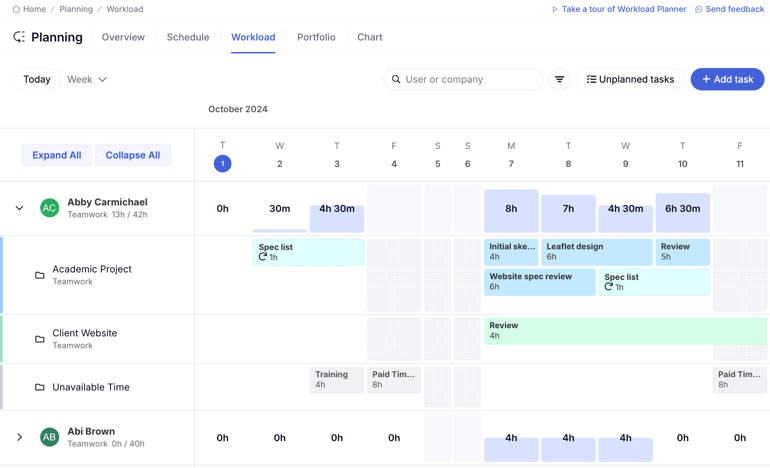
Teamwork.com has become one of my go-to tools to manage workload when I need to forecast work and track utilization across projects. The Workload Planner gives me a full view of my team’s assigned tasks, working hours, and time-off blocks in a timeline view.
I can drag tasks into open capacity slots, slide dates to balance effort, and see how changes affect each member’s calendar in real time. This means you can view who is booked, who has capacity, and where unplanned work sits, then drag those unassigned tasks straight onto the schedule without leaving your current view.
For long-term planning, I rely on Teamwork’s resource forecasting module that projects tasks and capacity into upcoming months. When multiple projects overlap, this view helps me decide which timelines to move or where to reassign work.
I also find Teamwork’s capacity planning useful in linking forecasted workloads to business priorities. You can factor in vacation, billable targets, and organizational goals so that utilization becomes part of how you commit to upcoming work. This makes it easier to justify resource changes and communicate actual workload capacity with stakeholders.
Pros✅ All plans offer native time tracking, including the free tier ✅ Purpose-built for resource management ✅ Extensive workload management tools | Cons❌ Limited options for workload templates ❌ Navigating advanced features take a lot of time ❌ Limited customization for project views |
Pricing
- Free: Includes five users and core project management features
- Deliver: $10.99/user/month — Adds intake forms, integrations, and automations
- Grow: $19.99/user/month — Adds budgeting, reports, and workload resource planner
- Scale: Custom — Adds profitability reports and resource scheduling
Standout features
- Utilization summaries identify team members who are overloaded, underutilized, or not yet assigned to tasks.
- Track individual tasks and workloads in real time for a short-term, day-to-day basis.
- View each person’s availability and account for holidays specific to their region.
- Modify task assignments, time off, and schedules across multiple projects within one platform.

Why I chose ClickUp
I highly recommend ClickUp for tech-savvy project managers seeking a workload-planning tool with intelligent task delegation. The platform features an AI project management agent that evaluates each team member’s expertise, current workload, and project priorities to recommend assignments that fit both individual strengths and available time.
ClickUp’s intelligent agents work across three levels of workload delegation.
- Availability-based agents distribute tasks by identifying who has the capacity to take on new assignments
- Skill-matching agents ensure specialized tasks are assigned to individuals with the right expertise.
- Capacity-monitoring agents continuously track each person’s capacity and reassign tasks when another person’s load increases.
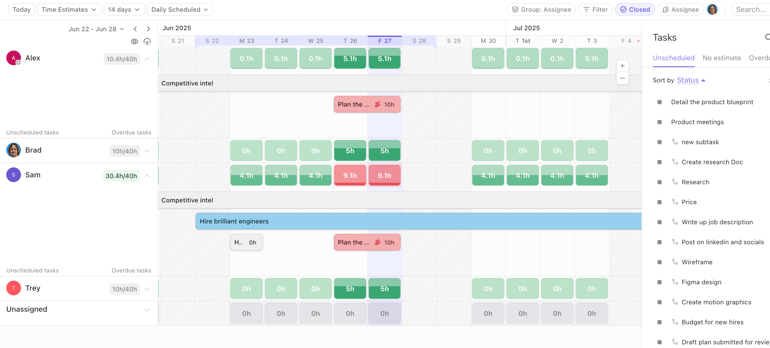
The Workload view, on the other hand, places everyone’s tasks on a timeline that I can scroll through and zoom to inspect by day, week, or month. It displays workload using color-coded indicators and lets me measure effort using time estimates or custom metrics. I can also group work by assignee or other attributes, add new tasks directly on the timeline, and adjust schedules.
Pros✅ Uses AI for intelligent task assigning ✅ Includes built-in real-time chat ✅ Provides a complete visual overview of another user’s workload | Cons❌ The number of features can be overwhelming for new users ❌ Automation can be slow at times when working with large boards ❌ Access to most AI features requires a monthly payment |
Pricing
- Free Forever: Includes unlimited users and tasks, 60MB storage
- Unlimited: $7/user/month — Adds integrations, Gantt charts, and time tracking
- Business: $12/user/month — Adds timelines, workload, and reporting
- Enterprise: Custom — Adds SSO, advanced permission, and custom roles
Standout features
- AI assigns each task to the most suitable team member based on expertise, availability, and workload.
- Measure workload metrics using task count, time estimates, sprint points, or custom fields.
- View sprint cards to plan iterations and evaluate team capacity, workload, and task progress.
- Visualize roadmaps by grouping related tasks on the timeline view.
Asana: Best for portfolio workload rebalancing across projects

My rating: 4.77/5
Visit Asana
Why I chose Asana
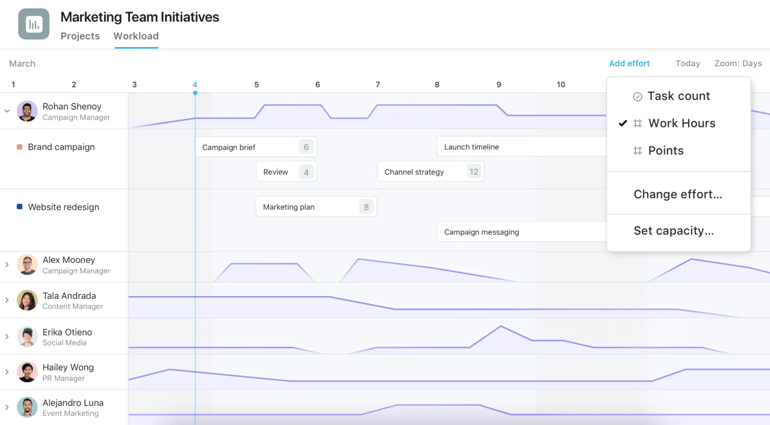
When managing multiple concurrent projects, I’ve found that Asana’s workload tools offer a unified view of how work is distributed across my team. The workload view places each team member’s assignments on a timeline and lets you evaluate effort in hours or custom work points. This reveals how a person’s capacity is being used across all projects rather than in isolated task lists or separate views.
Within the workload view, project leads can drag assignments between team members or reschedule them directly on the timeline. I can do this by expanding the workload pane and dragging tasks to new dates or people directly on the same screen.
The platform also ties workload insights into its portfolio management framework. When I review a portfolio, workload insights are already embedded into the same structure I use for status updates and timeline planning.
Pros✅ Supports flexible workload measurement ✅ Drag-and-drop tool for task reassignments ✅ Show team members’ tasks and effort across portfolios or the entire organization | Cons❌ Subtasks may not appear in workload views unless they meet specific criteria ❌ Workload views are available only on more expensive plans ❌ Highly dependent on task metadata |
Pricing
- Personal: Free – Includes unlimited tasks, activity log, and list views
- Starter: $10/user/mo – Adds workflow builder, forms, and Gantt view
- Advanced: $24.99/user/mo – Adds portfolio workload, time tracking, and approvals
- Enterprise: Custom – Adds resource management and admin controls
Standout features
- Set the weekly workload limit that your team can manage to prevent exceeding capacity.
- Track team performance through live visual reports that reveal workload trends and resource gaps.
- Reassign or reschedule tasks directly from the Workload tab by dragging items between team members or dates.
- Customize the Workload view to display only selected projects or team members for focused analysis.

Why I chose Wrike
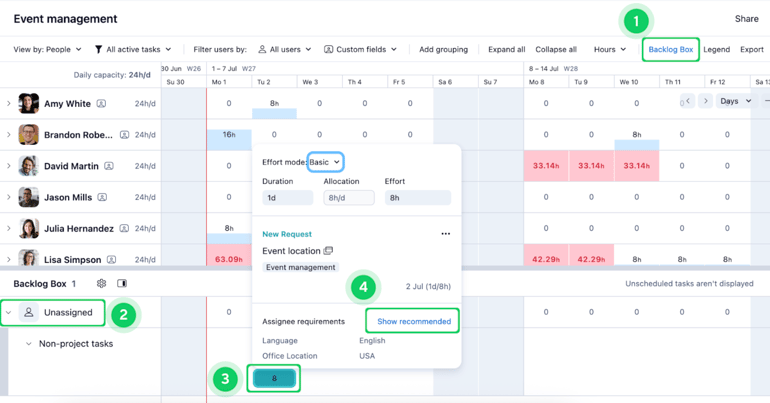
Wrike offers one of the most practical ways to manage capacity across multiple projects. Workload charts show each team member’s assigned effort on a unified timeline spanning daily, weekly, or monthly intervals. These charts tally the total effort required for all scheduled tasks and display those values directly in each user’s row. You can select how effort is displayed (e.g., hours, percentages, or full-time equivalents) to ensure the information aligns with whatever planning framework your organization uses.
Within the Workload chart, I can filter and group data to determine capacity patterns at scale. This view provides a focused perspective on workload by team or role and allows grouping by project to pinpoint where resource demand originates. Meanwhile, the backlog box highlights unscheduled tasks, which ensures that latent demand appears in your planning sessions.
Wrike also supports task rescheduling, reassignment, and effort editing directly from the workload chart, so decisions about capacity adjustments happen in context. Customizing chart settings lets managers focus the view on teams, tasks, or timeframes, giving you a tailored picture of how resources are distributed throughout the project portfolio.
Pros✅ Offers a complete view of team capacity across all projects ✅ Display workload in multiple formats, such as hours, percentages, or full-time equivalents models ✅ Provides a backlog box for managing unassigned tasks | Cons❌ Workload charts may include effort from all tasks in the account, which can cause confusion ❌ Only users with advanced permission roles can share or edit the workload chart ❌ Workload data depends on accurate effort input on tasks, so inconsistent information affects reliability |
Pricing
- Free: Unlimited users, basic task management
- Team: $10/user/month — Adds unlimited tasks, cross-tagging, and Gantt charts
- Business: $24.80/user/month — Adds request forms, approvals, and resource planning
- Enterprise: Custom pricing — Adds admin permissions and custom roles
- Pinnacle: Custom pricing — Adds advanced reporting and capacity planning
Standout features
- Pre-built reports provide an overview of project duration, resource usage, and overall team performance.
- Track team productivity more accurately by using built-in timers or entering logged hours manually.
- Distribute backlogged tasks based on each person’s capacity, expertise, and proficiency.
- Reassign and rank tasks by workload levels using Wrike’s resource allocation features.

Why I chose Jira
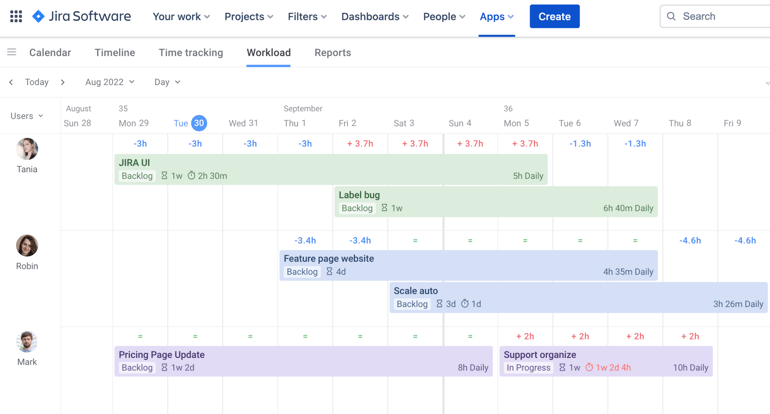
Jira has been one of the most reliable tools I’ve used for connecting issue tracking with agile sprint planning because it gives me a clear picture of sprint progress, team workload, and shifting priorities. I rely on its dashboards to track capacity indicators and sprint health in real time, which helps me balance assignments with my team’s actual pace and avoid overloading them during short iterations.
Although Jira lacks native workload management features found in some competitors, it integrates with third-party apps that enhance its capacity planning and scheduling functions. One of the most useful is ActivityTimeline, which maps individual and team workloads across multiple projects. The tool combines assigned tasks, logged hours, and leave schedules into a single view, allowing managers to anticipate imbalances and redistribute work without disrupting active sprints.
Another workload management integration is TeamBoard ProScheduler, which provides an overview of team and individual capacity. It allows managers to define working limits and organize schedules based on real availability. This ensures that each task fits within the team’s bandwidth, maintaining consistent productivity and preventing burnout during fast-moving agile cycles.
Pros✅ Offers burndown charts and workload distribution tools ✅ Built-in time tracking lets you compare estimates vs actual time spent ✅ Custom dashboards make it easy to monitor sprint workloads | Cons❌ Does not provide comprehensive workload planning out of the box ❌ Managing cross-project workload visibility can be complex without third-party add-ons ❌ Time tracking and workload insights rely on consistent updates from team members |
Pricing
- Free: Up to 10 users — Includes reports, 2GB storage, and timeline view
- Standard: $9.05/user/month — Adds AI agents and user roles
- Premium: $18.30/user/month — Adds approval processes and dependency management
- Enterprise: Custom — Adds advanced admin controls and cross-product insights
Standout features
- Integrate TeamBoard ProScheduler to manage individual and team capacity with clear insights into workload limits.
- Set milestones for each project or sprint to track remaining time compared to completed work.
- Use Jira reports to evaluate task estimates against actual logged hours for performance tracking.
- Customize dashboards with widget that highlight team capacity, workload levels, and sprint progress.
monday work management: Best for visualizing team capacity

My rating: 4.45/5
Visit monday
Why I chose monday work management
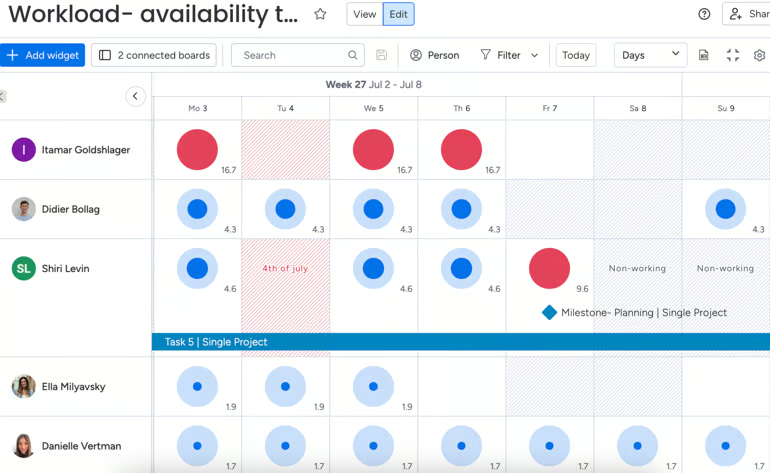
monday work management is ideal for tracking team capacity because it translates workload data into a visual grid that instantly shows how each person’s time is allocated. The Workload Widget presents a weekly or daily view using color-coded bubbles that represent assigned effort.
Large or dark-colored bubbles indicate that someone is at or near capacity, while smaller bubbles indicate available bandwidth. This benefits project managers by helping them decide where to shift tasks without digging through spreadsheets or lists.
When work schedules and non-working days are assigned to teams, those hours appear in the same view so that the visualization reflects actual availability. This matters when I plan around holidays or varying schedules, because the workload grid shows realistic capacity rather than assuming consistent availability for everyone.
If I need to explore the details behind a workload indicator, a single click opens a task panel with specific assignments, which makes it easier to identify why someone appears overbooked.
Pros✅ Customizable settings for configuring workload capacity ✅ Workload bubbles act as heatmaps that reveal team capacity ✅ Time tracking is easy to use and configure | Cons❌ Work schedules apply only at the team level ❌ Monthly workload totals may not reflect expected values ❌ Workload widget is not supported in the monday app |
Pricing
- Free plan: Up to 2 users and includes templates
- Standard: $14/user/month — Adds timeline and Gantt view, integrations
- Pro: $24/user/month — Adds advanced reporting, time tracking
- Enterprise: Custom — Adds portfolio reporting and resource management
Standout features
- Measure each user’s effort by tracking either item count or total workload value.
- Define individual work schedules, including available days, working hours, and approved time off.
- When multiple users share a task, specify how the workload is divided among them.
- Customize the Workload widget to match each person’s assigned schedule and team configuration.
Smartsheet: Best workload heatmap and schedule for project sheets

My rating: 4.42/5
Visit Smartsheet
Why I chose Smartsheet
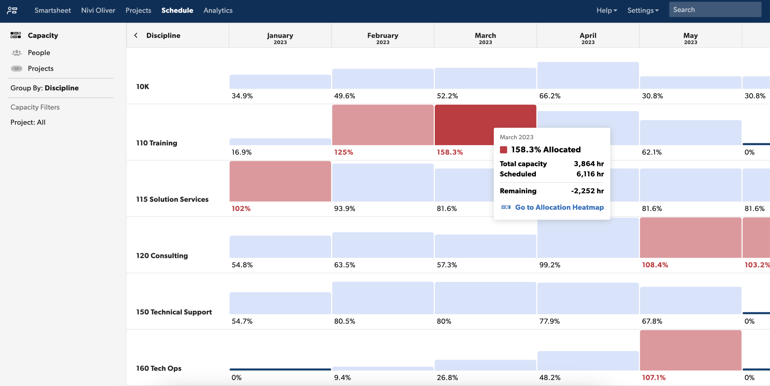
I highly recommend Smartsheet for project managers looking to monitor and balance resource commitments directly within project spreadsheets. When workload tracking is enabled, the heatmap displays colored blocks that represent how each person’s assigned tasks consume their effort relative to capacity, making it easier to spot overallocation.
The workload schedule extends this view by showing how tasks assigned across multiple project sheets affect each person’s calendar over weeks or months. Tracking commitments across concurrent initiatives helps you see which project demands contribute most heavily to a team member’s load, and gives a clearer basis for shifting work when conflicts arise. You can then make assignment changes directly on the sheet, keeping planning decisions close to the data source.
Pros✅ Provides a variety of pre-built resource allocation reports ✅ Uses a built-in map to show team availability and overallocation ✅ Users at different permission levels can view or edit workload tracking data | Cons❌ No free plan ❌ Workload allocation only shows up to 60 days in the past ❌ Charges a separate add-on fee for resource management |
Pricing
- Pro: $12/user/month — Includes unlimited users, project views, and sheets
- Business: $24/user/month — Adds free guests, timeline view, and workload tracking
- Enterprise: Custom — Adds AI formulas, work insights, and SSO
- Advanced Work Management: Custom – Adds Control Center and dynamic view
*No free plan available
Standout features
- Use the workload heatmap and schedule within sheets to identify who is available and resolve over-allocation issues.
- Leverage the heatmap to pinpoint staffing gaps or resource imbalances.
- Review connected projects contributing to over-allocation and adjust assignments to restore balance.
- Generate utilization reports to measure how efficiently resources are used and highlight over- or underutilized roles.
More project management coverage
- Best AI Project Management Tools
- Best Project Management Software
- Best Free Project Management Software
- Project Manager Resume Template (Free Download)
How I evaluated the best workload management tools
To create a balanced and fair comparison, I designed a scoring rubric that evaluates each workload management platform using weighted criteria covering cost, usability, features, and overall value for project managers managing complex workloads.
Pricing (20%)
Each platform’s affordability was scored based on the availability of a free plan or trial, average monthly per-user pricing, and discounts for annual billing. This ensures the tools offer substantial value across different business sizes and budgets.
General Features (25%)
Core project management capabilities, including task tracking, project views, dashboards, time tracking, and workload visualization, were reviewed. I focused on how each tool supports real-world project coordination and visibility across ongoing work.
Advanced/Niche Features (20%)
I assessed capabilities such as resource capacity planning, advanced reporting, AI-assisted workload tools, collaboration features, and integrations. These criteria highlight platforms that provide flexibility for growing teams or complex projects.
Support (10%)
Customer service availability, community access, security strength, and knowledge resources were key factors. Tools that provide accessible human support and detailed documentation scored higher for helping users resolve issues efficiently.
Ease of Use (10%)
I evaluated the learning curve, mobile app experience, and interface design to understand how quickly teams can adopt each tool. Platforms that combine intuitive navigation with easy mobile access received higher marks for usability.
Expert Score (15%)
The final category measured product quality, cost-effectiveness, user reputation, and research accessibility. This expert assessment ensured that top-rated platforms deliver proven reliability, strong value for money, and positive user feedback in real business settings.
What features should I look for in a workload management tool?
Workload views, time tracking, and resource allocation are standard features found in workload management tools. These capabilities form the foundation of effective workload planning, ensuring work is distributed correctly and achievable. To help you choose the right platform for your team’s needs, here are other essential features worth considering:
Task assignment and tracking
A workload management software lets managers assign, monitor, and adjust tasks based on capacity. It connects individual responsibilities to the project’s overall goals, helping teams stay organized and accountable. This feature reduces confusion about who owns a task and when it’s due.
Capacity and availability visualization
Workload visibility is essential for balancing demand with actual bandwidth. Capacity charts and calendars show how much work each person can take on, making it easier to shift assignments when someone becomes overbooked or unavailable.
Integrated time tracking
Built-in time tracking links estimated effort with actual hours spent. It helps teams measure productivity and enhance project timelines based on real data.
Resource allocation and forecasting
Resource allocation tools enable managers to distribute resources based on workload patterns and project timelines. They also forecast future demand, helping decision-makers plan for staffing gaps or shifting priorities.
Project and workload views
A mix of timeline, calendar, and workload views gives a detailed picture of how tasks overlap and where scheduling conflicts may occur across projects.
Collaboration and communication support
Workload management is most effective when it happens within the same space where teams communicate. Project management tools that integrate messaging, file sharing, and comments prevent delays caused by switching between platforms and keep updates tied to the relevant task or project.
How do I choose the right workload management tool?
Choosing the right workload management tool starts with identifying how your team plans, assigns, and tracks work. Evaluate whether the platform supports the level of visibility you need across projects and offers customization for different workflows.
Compare pricing against the features your team will actually use, and check for integration with your existing project or communication tools. Finally, you should also test how easily team members can navigate the interface, since adoption depends on how natural the tool feels in daily use.
The best choice will balance function, usability, and cost to strengthen your team’s ability to plan efficiently and maintain consistent performance across all projects.
FAQs
What is a workload management tool?
Workload management tools provide visibility into how tasks and responsibilities are distributed among team members. They track assigned work, measure capacity, and help managers allocate resources based on availability. By displaying real-time workload data, these platforms make it easier to identify imbalances and reassign tasks before productivity or morale declines.
Why is workload management critical in project planning?
Effective workload management ensures that project timelines reflect the team’s actual capacity instead of estimated assumptions. It allows managers to plan around real-time availability, redistribute work when priorities change, and avoid burnout caused by uneven task assignments. This process helps teams maintain predictable output while meeting project deadlines efficiently.
How do tools to manage workload improve team performance?
These tools connect performance tracking with capacity insights. They reveal which team members are underutilized or overloaded and support real-time adjustments to task allocation. By balancing workloads according to skill and availability, teams can maintain progress and improve delivery quality without overextending resources.