


Monitoring multiple projects while trying to enforce standard processes across teams is a constant challenge for growing companies. Project portfolio management (PPM) software has become part of my daily workflow to standardize project setup and get a high-level view of budgets and resource allocation. In this guide, I draw from my experience working with various PPM software to help you choose the right fit for your reporting requirements and governance structure.
- Wrike: Best executive dashboards
- Smartsheet: Best for process standardization
- ClickUp: Best for basic portfolio tracking
- Asana: Best for real-time portfolio updates
- Monday: Best custom portfolio boards
- Celoxis: Best for portfolio reporting
- Planview: Best for enterprise PMOs
How the best workload management tools compare
| Wrike |
| |||
| Smartsheet |
| |||
| ClickUp |
| |||
| Asana |
| |||
| Monday |
| |||
| Celoxis |
| |||
| Planview |
|

Why I chose Wrike
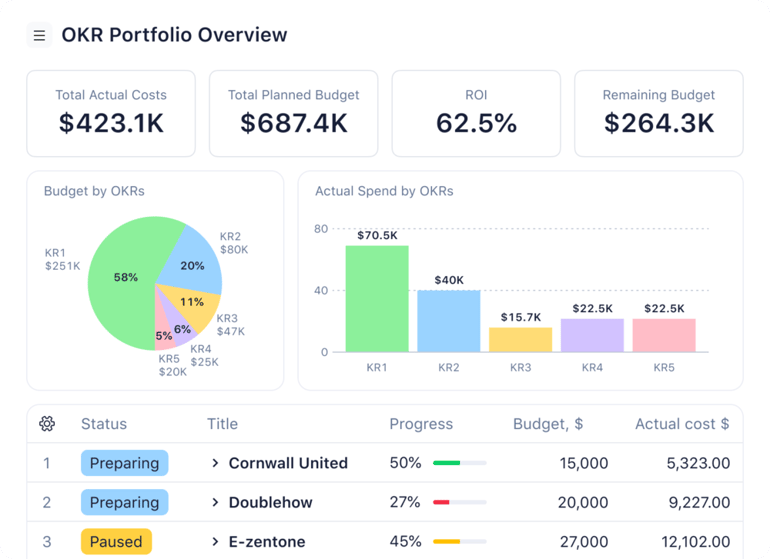
Wrike is my overall best project portfolio management software for executives who need a consolidated view of project performance and resource allocation. Its portfolio structure allows organizations to group projects into programs, track progress through real-time status indicators, and monitor financials alongside delivery metrics. Executives can configure dashboards to display KPIs, project health, budget data, and risk signals in one place, which centralizes reporting across departments.
The dashboard uses widgets that pull live data from the main workspace. It comes with ready-made reporting widgets, including workload views, KPIs, calendar heatmaps, and funnel charts. Portfolio-level analytics gather data from existing projects, so charts and reports update automatically as teams complete their tasks. Wrike also enables role-based views and permission controls, which allow leadership to see high-level summaries while PMOs retain access to detailed project data.
Pros and cons
| Pros | Cons |
|---|---|
| ✅Easily switch between portfolio-level summaries and detailed project views | ❌Seat bundles limit flexibility when team size changes |
| ✅Built-in proofing and approval tools | ❌Offers fewer monthly automation credits than competitors |
| ✅Folders improve workspace structure | ❌ Limited template options |
Pricing
- Free: Unlimited users and basic task management
- Team: $10/user/month — Adds cross-tagging, custom fields, Gantt charts, and portfolio management
- Business: $25/user/month — Adds AI elite features, request forms, templates, approvals, and resource planning
- Pinnacle: Custom pricing — Adds advanced reporting, resource and capacity planning, budgeting, and locked spaces
- Apex: Custom pricing – Adds Wrike Datahub and bi-directional integrations with third-party solutions
Standout features
- Business intelligence and advanced analytics for portfolio performance insights.
- Project budgeting and resource estimation tools to plan costs and staffing.
- Project portfolio status reports for real-time progress tracking.
- Custom request forms to manage idea intake and prioritization.

Why I chose Smartsheet
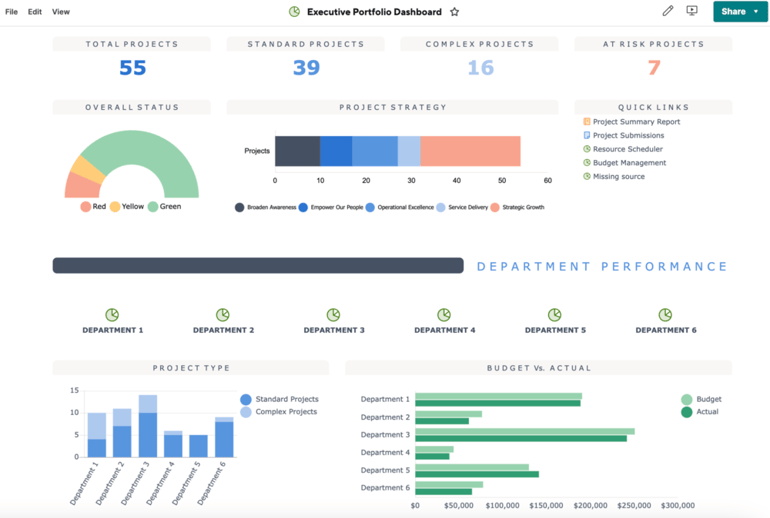
Smartsheet is the ideal PPM software for PMOs running multiple projects each year that need a standardized framework to automate project creation. Control Center is a portfolio management tool that uses blueprints as automated templates to launch new projects, so each one follows the same sheets, reports, dashboards, and metrics. When a new project is set up, these blueprints automatically replicate the approved structure so teams do not build plans from scratch, which helps enforce consistent workflows and reporting across the entire portfolio.
The blueprint source folders store templates for all project artifacts, while the blueprint summary sheets aggregate project data such as budget and health into a central view for portfolio reporting. The Control Center also offers automated provisioning and global updates so changes to templates apply to all active projects, maintaining consistency even as processes evolve.
Pros and cons
| Pros | Cons |
|---|---|
| ✅Run reports against your entire project portfolio | ❌Limited flexibility for making large-scale template changes |
| ✅Integrates project, portfolio, and program in one platform | ❌Access to portfolio tools requires an extra monthly fee on lower-tier plans |
| ✅Manage projects with the same templates, workflows, and reports | ❌ Setting up blueprints in Control Center requires technical skills |
Pricing
- Pro: $9/user/month — Includes unlimited users, rich formulas, sheets, and project views
- Business: $19/user/month — Adds free guests, unlimited automations, timeline view, workload tracking, and admin capabilities
- Enterprise: Custom — Adds work insights, AI formulas, unlimited attachment storage, and SSO
- Advanced Work Management: Custom – Adds Control Center and dynamic view
Standout features
- Portfolio dashboards showing project phase, budget, health status, and projected completion dates.
- Multi-tier intake workflows to collect requests and connect projects to programs.
- Automatic data syncing to keep portfolio reports and dashboards updated.
- Project blueprints to create and scale projects efficiently.

Why I chose ClickUp
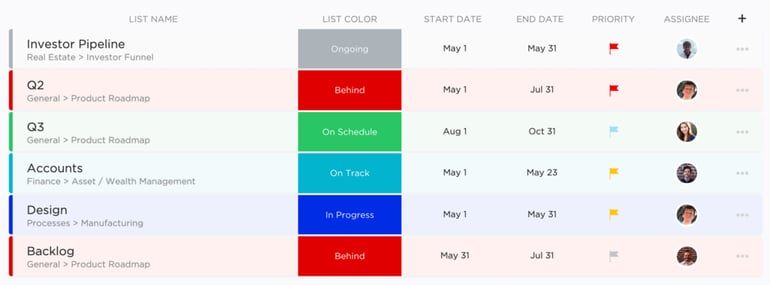
ClickUp is particularly useful for teams that want basic portfolio visibility within a shared workspace. Its portfolio cards let you pull data from multiple Folders or Lists into a single dashboard table, where you can view task counts, progress, status, and owners for each project. This gives you a unified view of active initiatives, with the ability to compare metrics and filter by priority or status in one place.
You select which Lists or Folders to include, and the portfolio card displays them using customizable columns such as progress, due dates, and time estimates. The data updates automatically as tasks change, so you can monitor multiple projects without complex configuration.
Pros and cons
| Pros | Cons |
|---|---|
| ✅Custom calculations available on portfolio cards | ❌Limit dashboards to a maximum of 100 portfolio cards |
| ✅Offers a ready-made portfolio template | ❌Requires a separate subscription for AI features |
| ✅Portfolio feature available at the entry-level paid plan | ❌ Portfolio cards do not support column reordering and resizing |
Pricing
- Free Forever: Includes unlimited users, Kanban view, 60MB storage, and sprint management
- Unlimited: $7/user/month — Adds integrations, forms, Gantt charts, real-time chat, time tracking, portfolios, and resource management
- Business: $12/user/month — Adds timeline view, activity views, workload management, and reporting
- Enterprise: Custom — Adds SSO, advanced permission, enterprise API, and custom roles
Standout features
- Custom task statuses (up to 16 per project) to track detailed progress.
- Project data attributes (six fields) for cost, balance, expenses, progress, and team visibility.
- Custom Portfolio cards to categorize and monitor task performance.
- AI-powered insights for predictive analytics and forecasting.

Why I chose Asana
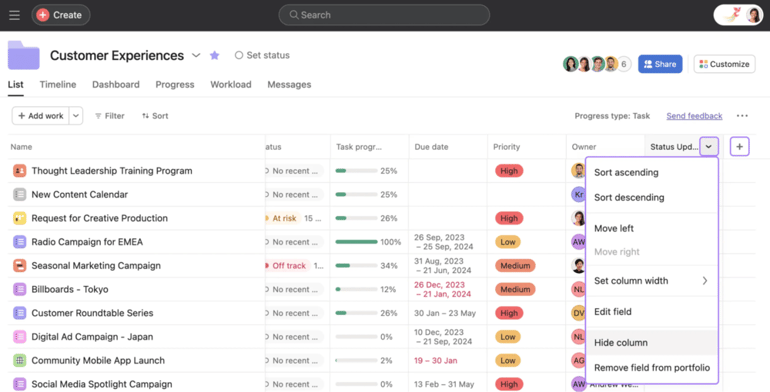
Asana’s portfolio management solution focuses on delivering real-time insights across all your projects. Portfolios give you a single view where you can group projects and see status, progress, owners, due dates, and custom fields in one place. You can sort and filter by project details like status or owner, add nested portfolios, and even roll up numeric custom field values such as budget, effort, and billable hours.
Portfolio views include timeline and dashboard views so you can visualize schedules and key metrics in real time, and a workload view that shows team capacity and task distribution. You can add global custom fields to get the total values across all included work and filter by those fields. For portfolio visibility, you can publish status updates to all portfolio users and link the portfolio to company goals so stakeholders stay informed as work progresses.
Pros and cons
| Pros | Cons |
|---|---|
| ✅Unlimited automation credits | ❌Paid plans have steep price jumps |
| ✅Generates the status of portfolio progress | ❌No user seat limits |
| ✅Add existing projects to a portfolio in just a few clicks | ❌Tasks can only be assigned to one user |
Pricing
- Free: Up to two users — Includes list, board, and calendar views
- Starter: $10.99/user/month — Adds forms, templates, Gantt view, AI studio, automations, and dashboards
- Advanced: $24.99/user/month — Adds goals, proofing approvals, and time tracking
- Enterprise: Custom – Adds resource management and admin controls
Standout features
- Portfolio view for centralized project oversight.
- Portfolio archiving to preserve inactive project data.
- Nested portfolios to manage work across multiple projects.
- Detailed portfolio drill-downs for tasks, resources, and timelines.
5. monday work management: Best custom portfolio boards

My rating: 4.64/5
Visit monday.com
Why I chose monday
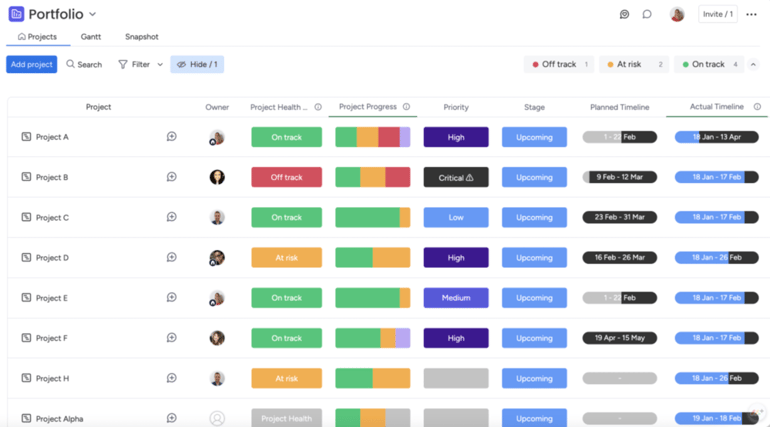
monday’s portfolio feature is built around customizable boards that adapt to your workflow. It connects multiple project boards into one interactive portfolio view where you can see status, timelines, owners, and key fields. The board updates automatically as project data changes, so you do not need to refresh or rebuild reports manually.
The All Projects Dashboard includes prebuilt widgets that automatically pull data from every connected project. The Portfolio Health Snapshot shows task completion rates and planned versus actual timelines at a glance. In addition, Portfolio Risk Insights uses AI to analyze data from multiple boards and flag potential risks, allowing you to proactively identify risks across your entire portfolio.
Pros and cons
| Pros | Cons |
|---|---|
| ✅User-friendly design | ❌Core features are locked behind higher tiers |
| ✅Provides a quick visual overview of portfolio status | ❌Access to portfolio features requires an Enterprise subscription |
| ✅Comes with a ready-made Gantt chart within the portfolio board | ❌ Seat bundle pricing can feel confusing |
Pricing
- Free plan: Up to 2 users and includes 200+ templates, Kanban view, and shareable forms
- Basic: $9/user/month — Adds 5GB storage, custom fields, documents, and monday AI
- Standard: $12/user/month – Adds Gantt view, 20GB storage, guest access, 250 automation actions, and integrations
- Pro: $12/user/month — Adds private boards, chart view, time tracking, and formula
- Enterprise: Custom — Adds portfolio reporting and resource management
Standout features
- Project-to-portfolio syncing for centralized visibility.
- Built-in Gantt view within the Portfolio board to track timelines across projects.
- Health Snapshot for quick portfolio progress checks.
- Daily risk alerts highlighting potential project issues.

Why I chose Celoxis
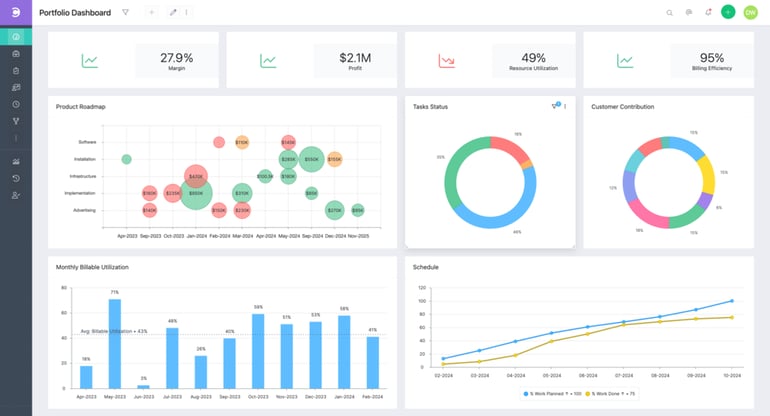
Celoxis is designed for teams that need comprehensive portfolio reporting across projects. It includes built-in portfolio reports that show budget allocation, schedule performance, cost overruns, and resource capacity in visual and tabular formats. These reports pull live data from all projects, so leaders can review financials, timelines, and risk in one view.
In the Portfolio section, you can set a scoring criterion for projects by defining numeric attributes such as strategic alignment, benefits, and risk. Resource capacity and utilization views show how teams are allocated across the portfolio. For planning purposes, Celoxis offers What-If project state, which allows managers to model proposed projects against current resource loads and test their impact before approval.
Pros and cons
| Pros | Cons |
|---|---|
| ✅Combines resource management, budgeting, and portfolio insights in one platform | ❌Advanced customizations come with a steep learning curve |
| ✅What-if scenario capabilities | ❌Interface can feel outdated and complex |
| ✅Comprehensive portfolio view | ❌ Smaller teams might find it more robust than needed |
Pricing
- Core: $10/user/month — Includes advanced analytics, BI dashboards, Gantt charts, project templates, aggregated dashboards, and two read-only users.
- Essentials: $25/user/month — Adds timesheets, job roles, resource planning, work calendars, automatic RAG calculation, workspaces, custom security roles, and five free read-only users.
- Professional: $35/user/month — Adds risk tracking, intake management, costing, expense management, and 10 free read-only users.
- Business: $45/user/month — Adds billing, free client portal, advanced security, strategic portfolio management, and 15 free read-only users.
- Enterprise: Custom — Adds the ability to create your own custom apps, maximum API limits (1,800/hour), and VIP support.
Standout features
- Cost Overrun tabular report to flag projects exceeding budget.
- “What If” project state for basic scenario analysis.
- Project Requests Queue report to track incoming requests and scoring.
- Resource availability reports to assess near-term capacity.

Why I chose Planview
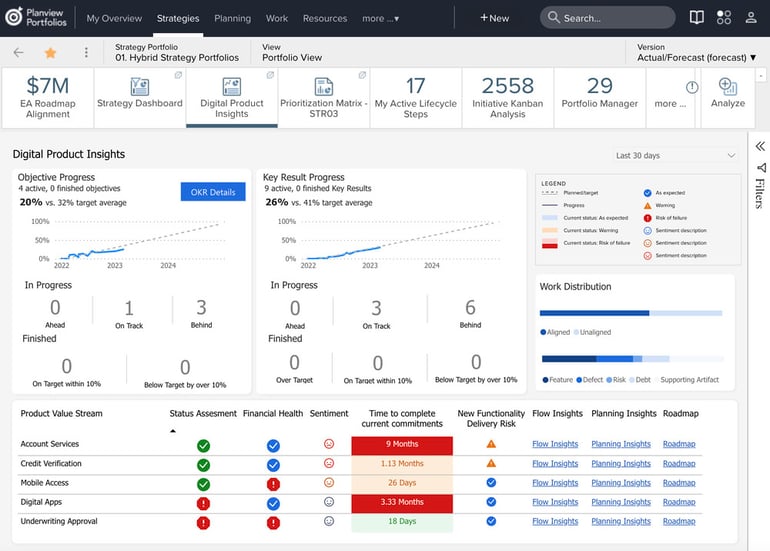
Planview is my top PPM software for enterprise PMOs that need to manage strategy, funding, and project delivery across large portfolios. Its portfolio management solution connects business goals to project execution by providing visibility into demand, budgets, resources, and progress in one system. Leaders can compare investment options and understand how budget and resource limits affect the portfolio before making approvals.
The platform also supports scenario modeling, which allows teams to test changes in priorities, funding, or resource allocations and compare outcomes. Integrated capacity planning shows the distribution of people and skills across projects, while strategic roadmaps connect long-term objectives to active projects. Executive dashboards combine portfolio health and delivery metrics into a single view, while AI-driven insights help identify constraints and performance issues across the portfolio.
Pros and cons
| Pros | Cons |
|---|---|
| ✅Offers enterprise-level visibility | ❌Unpublished pricing |
| ✅Uses AI for project prioritization | ❌Setup requires technical knowledge |
| ✅Robust financial tracking | ❌ Can be highly complex for smaller teams |
Pricing
Custom pricing
Standout features
- AI-driven prioritization to rank projects by impact and urgency.
- Capacity planning and team matching tools to balance workload and prevent overload.
- Risk alerts and scenario modeling to anticipate potential issues.
- Real-time budget and schedule tracking to catch variances early.
More project management coverage
- Best AI Project Management Tools
- Best Project Management Software
- Best Free Project Management Software
- Project Manager Resume Template (Free Download)
How I evaluated the best project portfolio management tools
My scoring methodology evaluated project portfolio management software across six major categories: pricing, general features, advanced capabilities, support, ease of use, and expert score. I assessed pricing models and total cost of ownership, then explored portfolio capabilities through reporting tools, resource planning, budgeting, prioritization features, automation, and executive dashboards.
I evaluated support based on SLA, compliance certifications, security, and availability of onboarding resources. Ease of use considered mobile access, technical skill required, and ease of navigation. The final expert score reflected value for money against industry benchmarks and third-party ratings.
What features should I look for in a project portfolio management tool?
PPM tools typically offer dashboards, resource planning, budget tracking, and executive reporting, but the best choice depends on which capabilities are most important for your organization. In my experience, the most effective solutions prioritize cross-functional visibility and data standardization to ensure every project aligns with your business objectives.
- Project dashboards: Dashboards should consolidate multiple projects into one real-time view with status, progress, risk indicators, and key metrics.
- Resource capacity planning: The tool must show team availability and workload across projects to prevent overallocation.
- Budget tracking and financial rollups: Portfolio rollups should summarize planned versus actual costs across all projects.
- Prioritization and scoring tools: Built-in scoring models help rank initiatives based on strategic value and risk.
- Portfolio reporting: Reports should automatically pull live data from all projects into a single portfolio summary.
- Cross-project dependencies: Dependency tracking should reveal how delays in one project affect others.
- User roles and licensing flexibility: The tool should support different license types, such as admins, editors, contributors, and viewers, to control costs and scale access appropriately.
How do I choose the right project portfolio management tool?
Choosing the right project portfolio management tool starts with understanding how your organization manages projects and resources. I suggest identifying where you lack visibility or consistency before comparing software options. The right solution should match your company’s size and support your reporting and governance needs.
It’s also important to evaluate scalability. As your organization grows, your PPM tool should be able to support more users, larger portfolios, and increased reporting complexity without requiring a full platform switch.
In the end, the best project portfolio management tool is the one that fits your processes and makes portfolio decisions easier to manage.
Frequently asked questions (FAQs)
What is project portfolio management software?
Project portfolio management software helps organizations manage multiple projects by tracking performance, budgets, priorities, and resources from a centralized view.
What is the difference between project management and project portfolio management software?
Project management software focuses on the delivery of individual projects, while project portfolio management software offers tools to oversee and control multiple projects collectively based on strategy, resources, risk, and financial priorities.
How does PPM software help with resource capacity planning?
PPM software provides visibility into team workload, availability, and skill allocation across projects, allowing managers to forecast demand and balance capacity before approving new initiatives.